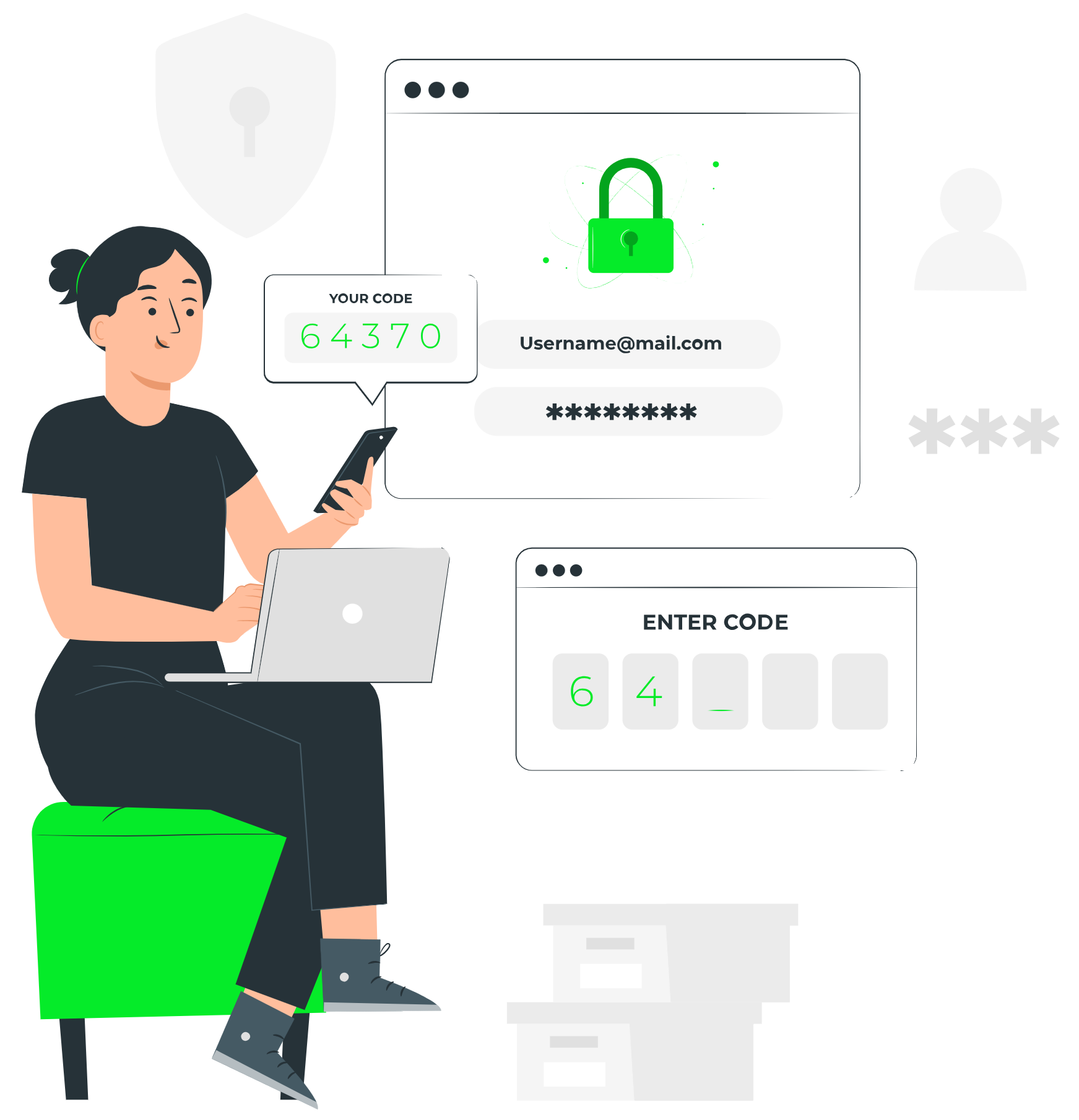

For the security of your organization, Carl’s Consulting Agency does not enable automated “Forgot Password” links for hosted email accounts. This policy prevents unauthorized users from easily resetting credentials if they gain access to a recovery phone number or secondary email.
If you or a user needs a password reset, please follow the secure request process below:
Step 1: Navigate to the Support Page
To initiate the request, please visit our Support Ticket page.
Step 2: Submit a Reset Request
Complete the support form with the following specific details to ensure your request is processed immediately:
Name: Enter your full name.
Email: Enter a working email address where we can contact you (e.g., a personal Gmail or a manager’s email). Do not enter the email address that is locked out, as you won’t be able to receive our reply there.
Service Category: Select Email Support.
Urgency: Select Medium (Select “Emergency” only if an entire department is locked out).
Detailed Description: Please copy and paste the text below, replacing the bracketed info with your details: “I am requesting a password reset for the following account: [Insert Locked Email Address]. Please send the temporary credentials to the email address I used to submit this form.”
Step 3: Verification & Resolution
Our team will verify the request against the authorized contacts for your organization. Once confirmed, we will manually reset the password and send a temporary login to the Alternate Contact Email you provided in Step 2.
We cannot send the new password to the email address that is locked out. If you do not provide an alternate contact method, we will reach out to the primary billing contact on file for your account to verify your identity.
Pro Tip: Once you regain access, please log in to webmail immediately to change your temporary password to a secure, permanent one.