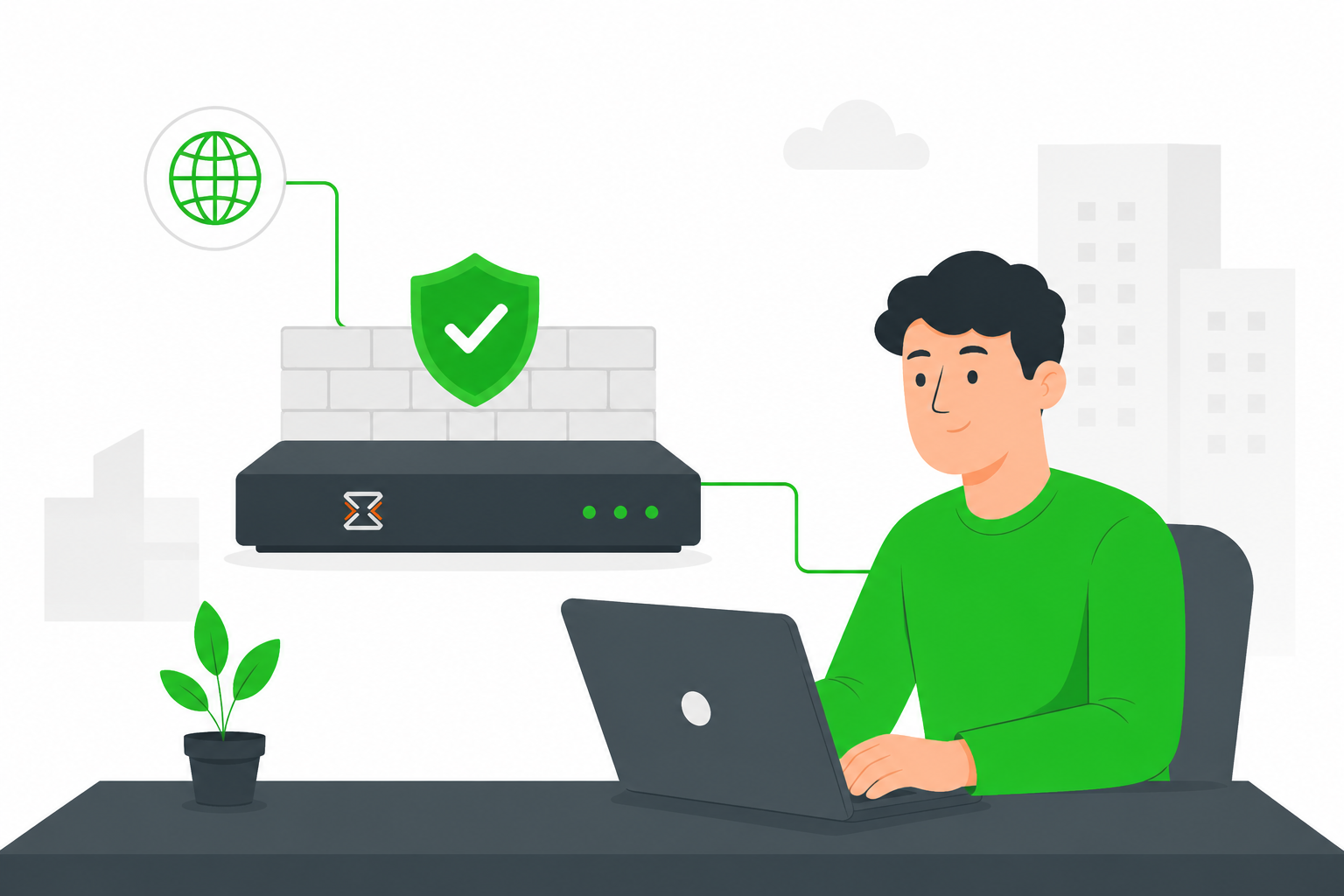

If you are suddenly unable to access your Webmail, Hosting Control Panel, or VoIP system, your IP address may have been temporarily blacklisted by our Intrusion Prevention System (IPS).
This usually happens after multiple failed login attempts (e.g., entering the wrong password 3+ times in a short period). Our firewall interprets this as a “brute-force” attack and blocks connection attempts from your location to protect your account.
To restore access, please follow the steps below:
Step 1: Find Your Public IP Address
To unblock you, we need to know exactly where you are connecting from.
Go to Google and search “What is my IP”.
Copy the number shown (e.g.,
192.0.2.1or2001:db8::1).
Step 2: Submit an Unblock Request
Navigate to our Support Ticket page and complete the form with the following details:
Name & Email: Your contact information.
Service Category: Select Technical Support.
Urgency: Select High (since you are completely locked out).
Detailed Description: Please copy and paste the text below, replacing the bracketed info with your details: “I am currently blocked from accessing [Service Name, e.g., Webmail]. My Public IP address is [Insert Your IP Address Here]. Please remove this IP from the firewall blacklist.”
Step 3: Resolution
Our security team will verify the activity log. Once confirmed that the traffic was legitimate, we will manually remove the ban and notify you via email.
Pro Tip: If you have shared credentials in an office (e.g., frontdesk@company.com) and one person enters the wrong password repeatedly, the firewall will block the entire office IP. Please coordinate with your team to ensure everyone has the correct password before requesting an unblock.